POWER7 information

Removing a PCI adapter from the 8233-E8B and 8236-E8C server, with the power on in the AIX environment

You can remove a PCI adapter with the system power on in the AIX® environment.

To remove a failing adapter and replace it with the same adapter, see Removing and replacing a PCI adapter in the 8233-E8B and 8236-E8C server, with the power on in the AIX environment. If the adapter that is removed will be placed into a different slot or system, complete this removal procedure, and then install the adapter as described in Installing a PCI adapter in the 8233-E8B and 8236-E8C server, with the power on in an AIX environment.

If your system is managed by an HMC, use the HMC to complete the steps for installing the part in the system. For instructions, see Installing a part by using the HMC.

Note: Procedures performed on a PCI adapter with the system power on in the AIX environment, also known as hot-plug procedures, require the system administrator to take the PCI adapter offline before performing the operation. Before taking an adapter offline, the devices attached to the adapter must be taken offline as well. This action prevents a service representative or user from causing an unexpected outage for system users.

If you do not have an HMC, complete the following steps to remove a PCI adapter with the system power on in the AIX environment:

  1. Complete the prerequisite tasks that are described in Before you begin.
  2. Take appropriate precautions for avoiding electric shock and handling static-sensitive devices. For information, see Avoiding electric shock and Handling static-sensitive devices.
  3. If you are removing a failing PCIe adapter, identify the failing part. For instructions, see Identifying a part. If you are removing the PCI adapter for other reasons, continue to the next step.
  4. If you are removing a failing PCI adapter, see Identifying a failing part. If you are removing the PCI adapter for other reasons, continue to the next step.
  5. If you are installing, removing, or replacing a PCI adapter in a rack-mounted system, follow these steps to remove the service access cover.
    1. Open the front rack door.
    2. Place the system unit in the service position.
    3. Remove or open the service access cover.
  6. Determine which adapters you plan to remove.
  7. Record the slot number and location of each adapter being removed. Adapter slots are numbered on the rear of the system unit.
  8. Ensure that any processes or applications that might use the adapter are stopped.
  9. Follow these steps to remove a PCI adapter using the PCI Hot-Plug Manager menu in the AIX Diagnostic tools:
    1. Enter the system diagnostics by logging in as root user or as the celogin user, type diag at the AIX command line.
    2. When the DIAGNOSTIC OPERATING INSTRUCTIONS menu displays, press Enter.
    3. At the FUNCTION SELECTION menu, select Task Selection, then press Enter.
    4. At the Task Selection list, select PCI Hot Plug Manager.
    5. Select Unconfigure a Device, then press Enter.
    6. Press F4 (or Esc +4) to display the Device Names menu.
    7. Select the adapter you are removing in the Device Names menu.
    8. Use the Tab key to answer NO to Keep Definition. Use the Tab key again to answer YES to Unconfigure Child Devices, then press Enter. The ARE YOU SURE window displays.
    9. Press Enter to verify the information. Successful unconfiguration is indicated by the OK message displayed next to the Command field at the top of the screen.
    10. Press F4 (or Esc +4) twice to return to the Hot Plug Manager menu.
    11. Select Replace/remove PCI Hot Plug adapter.
    12. Select the slot that has the device to be removed from the system.
    13. Select remove. A fast-blinking amber LED located at the back of the machine near the adapter indicates that the slot has been identified.
    14. Press Enter. This places the adapter in the action state, meaning it is ready to be removed from the system.
  10. Label, and then disconnect all cables attached to the adapter you plan to remove.
  11. Slide the adapter latch (A) into the open position, as shown in the following figure.
    Figure 1. PCI adapter or filler plate removed from the rack-mounted system unit
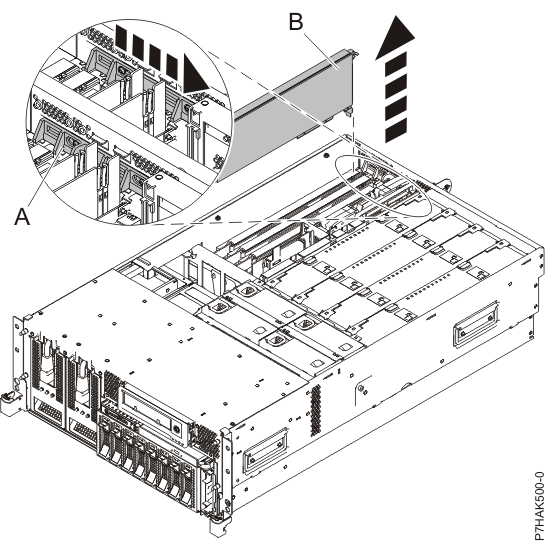
    Adapter or filler plate removed from the system unit.
  12. Carefully grasp the PCI adapter (B) by its top edge or upper corners, and remove it from the system. Store the adapter in a safe place.
  13. If you plan to install another adapter into the vacated slot, go to Installing a PCI adapter in the 8233-E8B and 8236-E8C server, with the power on in an AIX environment; otherwise, continue with the next step.
  14. Seal the expansion slot using an expansion-slot cover.
  15. Lower the plastic retainer seat over the PCI adapter faceplate.
  16. Rotate the locking latch clockwise until it clicks into the locked position.
  17. Continue to follow the screen instructions until you receive a message that the adapter removal is successful. Successful removal is indicated by the OK message displayed next to the Command field at the top of the screen.
  18. If you have other adapters to remove, press the F3 key to return to the PCI Hot-Plug Manager menu and then return to step 10.

    If you do not have other adapters to remove, continue with the next step.

  19. Press F10 to exit the Hot-Plug Manager.
  20. Run the diag -a command. If the system responds with a menu or prompt, follow the instructions to complete the device configuration.
  21. Replace or close the service access cover and, if applicable, return the system to the operating position.
  22. To replace the PCI adapter, see Replacing a PCI adapter in the 8233-E8B or 8236-E8C server.


Send feedback Rate this page

Last updated: Thu, January 10, 2019