Adding document extractors
You can add custom document extractors to agentic workflows to extract fields or entities such as date, names, and others from documents.
When you configure a document extractor, you can choose a model from the list of available models. You can also add your own custom model through AI Gateway. For more information, see Adding custom AI models.
To add a document extractor to an agentic workflow:
- Open the agentic workflow in the workflow builder.
- Click the Add flow items icon
 .
. - Select the Flow nodes tab.
- Drag Document extractor to the agentic workflow.
- Select one of these tool options to extract fields from your documents: Structured or Unstructured. For more information and guidelines on which tool option is suitable for your data extraction use case, see Choosing a tool option for extracting fields from documents.
Alternatively, to add a document extractor, click the connector line between the start and end nodes, then select Add a flow activity > Document extractor.
Choosing a tool option for extracting fields from documents
You can choose from two tool options to extract fields from documents: Structured and Unstructured. These tools differ in how they process information, but the steps that you need to follow in both options are almost the same.
-
Unstructured: Uses a text-based language model to extract top-level fields from documents. It works best for text-heavy content, but does not extract column values from tables.
-
Structured: Uses a vision-based, multimodal language model to extract both top-level fields and table data. Because it relies on a larger model, it usually runs slower. Structured extraction is designed to identify and return these types of values:
-
A single, atomic value per field from a document. Typical examples include values such as an invoice number, form date, or total amount.
-
Structured tuples of values with a fixed structure that are grouped within the document. Typical examples include line items in an invoice, or items in a receipt.
-
When to use each tool option
-
Use Unstructured when your documents meet these criteria:
- Text-heavy documents that span multiple pages such as, contracts, emails, or manuals
- Fields appear in headers or within the body of the text
For more information, see Configuring a document extractor after selecting the Unstructured option.
-
Use Structured when your documents meet these criteria:
- Have a structured or fixed layout that contains labels and values
- Include tables or form-like sections
- Are typically short (1–3 pages), such as invoices, purchase orders, or tax forms
For more information, see Configuring a document extractor after selecting the Structured option.
Configuring a document extractor after selecting the Unstructured option
To configure the document extractor to identify and extract a set of fields from unstructured documents:
- Select the document extractor that you added to the agentic workflow.
- Click the Edit fields icon
 .
.
A dialog to upload the documents and add fields is displayed.
- Select a model to use for the document extractor from the Model list.
From the Models list, click View all foundation models to open the model selection dialog, which lists all available models. To select a model, search for it or choose one from the list. After you select a model, click Save. Any notices associated with the selected model, such as deprecation notices or third‑party license requirements, are displayed.
Certain models include a status tag in the dialog to indicate states such as Recommended or Third party. A warning icon indicates that a model might be withdrawn or deprecated in a subsequent release.
Note: You can upload documents or add fields in any order. Extraction begins when the system has at least one document and one field. - To select a language for the document extractor, see Selecting a language for document extractor.
- Do the following:
-
Upload your documents
The uploaded sample documents help in creating the fields. These documents do not train the model, and are also not a part of the agent that is being configured.
It might take some time to upload the documents.
When the upload is complete, you can see a document preview where you can do the following actions:
- Evaluate document extraction accuracy. For more information, see Evaluating and improving document extraction.
- Select an uploaded document to view from the list of documents
- Add more documents and delete documents. You can click Add documents to upload more documents. You can also delete documents from the document manager. To delete a single document, click the Delete icon when you hover over the document name. To delete multiple documents, click Select all, then select the checkboxes next to the documents to delete, and click Delete documents.
- Browse the pages of a document that you are viewing
- Fit the page width and height to view
- Zoom in and zoom out a page to view
- Search for a field in a document
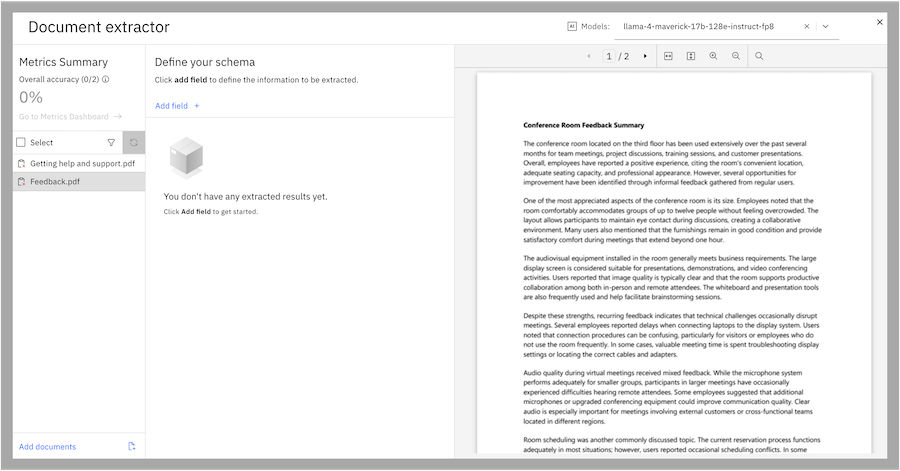
In the previous example, a user uploads sample documents and the document preview is displayed for these documents.
- Add fields
Click Add field to add fields for the information that you want to extract from the documents such as dates, names, and others.
The document extractor searches for values that are related to the fields across documents.
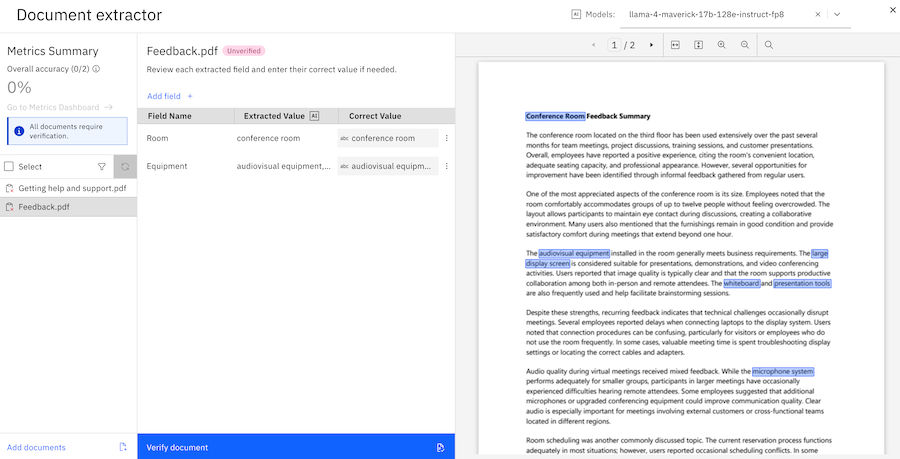
In the previous example, a user has added certain fields, which are searched and shown on the document preview panel.
To edit the field details, click the Options
 icon and select Edit. You can edit the field name, description, and data type. You can add examples and options for the field to help the model understand what information you want to extract. You can also delete the field if it is no longer needed.
-
- To configure the settings that trigger a user review, see Configuring a user review.
- After you verify and get the expected results, close the document extractor dialog.
Configuring a document extractor after selecting the Structured option
The ability to extract all line items from structured documents such as purchase orders and invoices reduces manual efforts and improves accuracy in document processing.
To configure the document extractor to identify and extract a set of fields from structured documents:
- Select the document extractor that you added to the agentic workflow.
- Click the Edit fields icon .
A dialog to upload the documents and add fields is displayed.
- Select or specify a model to use for the document extractor from the Models list.
From the Models list, click View all foundation models to open the model selection dialog, which lists all available models. To select a model, search for it or choose one from the list. After you select a model, click Save. Any notices associated with the selected model, such as deprecation notices or third‑party license requirements, are displayed.
Certain models include a status tag in the dialog to indicate states such as Recommended or Third party. A warning icon indicates that a model might be withdrawn or deprecated in a subsequent release.
Note:You can upload documents or add fields in any order. Extraction begins when the system has at least one document and one field.
- To select a language for the document extractor, see Selecting a language for document extractor.
- Do the following:
-
Use a schema from a list of predefined schemas
You can choose a document type and add multiple fields that are associated with the document type, instead of manually adding the fields one at a time. Several document types such as bank statements, invoices, insurance claims, and others are available for selecting schemas.
To add fields from a predefined schema, do the following:- Click Define schema.
- Select a type of document from Predefined schemas.
A description about the selected document type and all the associated fields that are available to extract data are displayed.
- Click Create.
The document extractor searches for values that are related to the fields across documents.
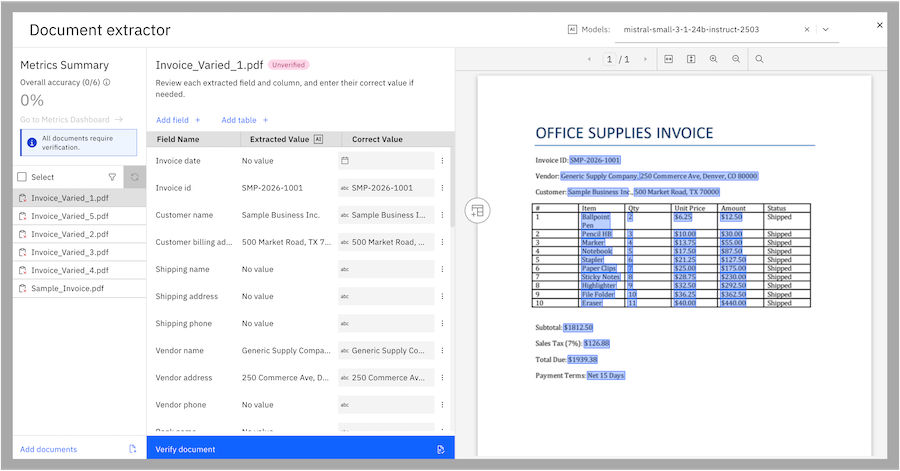
In the previous example, the fields that are extracted for an invoice document are shown in the dialog.
To edit the field details, click the Options
icon and select Edit. You can edit the field name, description, and data type. You can add examples and options for the field to help the model understand what information you want to extract. You can also delete the field if it is no longer needed.
- Upload your documents
The uploaded sample documents help in creating the fields. These documents do not train the model, and are also not a part of the agent that is being configured.
It might take some time to upload the documents.
When the upload is complete, you can see a document preview where you can do the following actions:
- Evaluate document extraction accuracy. For more information, see Evaluating and improving document extraction.
- Select an uploaded document to view from the list
- Add more documents and delete documents. You can click Add documents to upload more documents. You can also delete documents from the document manager. To delete a single document, click the Delete icon when you hover over the document name. To delete multiple documents, click Select all, then select the checkboxes next to the documents to delete, and click Delete documents.
- Browse the pages of a document that you are viewing
- Fit the page width and height to view
- Zoom in and zoom out a page to view
- Search for a field in a document
In the previous example, a user uploads sample invoice documents, and the document preview is displayed. The preview also shows the automatically detected tables in the document from which you can extract data.
- Add automatically detected tables
To add an automatically detected table from the document to extract data, click the Add table icon
 .
.The data from the table is added to the fields for extraction. To edit the table name, hover your mouse over the table name, and click the Edit icon
. To delete the table, you can click the Delete icon  .
.You can also reorder the columns in the extracted tables. For more information, see Reordering columns.
- Add custom tables
Do the following to add a custom table:
a. Click Add table and specify a name for your custom table, and press Enter.
b. Click Add column and provide the column name for your custom table, and press Enter. Repeat this step to add more columns to your custom table.
The system searches for the column values in the document. The first value that is found for a column is displayed and all other values for that column are highlighted in the document preview. If a value is not found for a column, no value is displayed for the column.
You can also reorder the columns in the extracted tables. For more information, see Reordering columns.
c. To view your custom table with a preview of the extracted data, click View full table next to the table name.
- Add fields
To add more fields for the information that you want to extract from the documents such as dates, names, and others, click Add field.
After you enter a field name, the document extractor searches for values that are related to the fields across documents.
To edit the field details, click the Options
icon and select Edit. You can edit the field name, description, and data type. You can add examples and options for the field to help the model understand what information you want to extract. You can also delete the field if it is no longer needed.
-
- To specify a page range to extract content, see Selecting a page range to extract content.
- To configure the settings that trigger a user review, see Configuring a user review.
- After you verify and get the expected results, close the document extractor dialog.
Reordering columns
You can reorder columns in tables by dragging and dropping them. This action is helpful, for example, when you want to ensure that the column order aligns with the original table in the document.
By default, the column order in the schema matches the order in the extracted table. However, if a column is missed during auto-detection and is added manually later, it appears at the end of the table.
To reorder column names in tables:
- Hover over the column name and drag it by clicking the Drag icon
 .
. - Click View full table next to the table name. The new column order in the table is displayed in the preview.
Selecting a page range to extract content
In the structured document extractor, you can select a page range to extract content from specific sections of large documents.
Instead of processing entire documents, you can select the exact page range to extract. When you have a large document where only the first few pages or specific pages contain relevant information, you can extract only those pages rather than processing the entire document.
To select a page range to extract:
- Select the structured document extractor in the agentic workflow.
- Set the Select a page range option to On.
- Use the From and To options to specify the page range of the document to extract.
Selecting a language for document extractor
You can specify the language of your documents when you configure a document extractor node. Selecting the correct language improves the accuracy of processing and, as a result, the quality of document extraction. By default, the document extractor node uses English.
To select a language for a document extractor node:
- Select the document extractor in the agentic workflow, and click the Edit icon .
- Click the language selection icon
 , and select the language of the documents.
The drop-down list includes languages from Afrikaans to Zulu, plus English handwriting and German handwriting.
Consider the following limitations when you select a language for document extractor:
-
Scanned PDFs and images: Non-Latin script languages, such as Japanese and Korean are not supported for scanned PDFs and images.
-
Programmatic documents: All languages available in the drop-down list are supported for programmatic documents such as programmatic PDFs, .docx, and .pptx files.
-
Extraction quality: Extraction quality for non-English languages depends on the selected large language model (LLM) for your deployment. Different models support different sets of languages. For example, the
mistral-small-3.2-24b-instructmodel supports 24 languages. If your selected language is not covered by the model in use, extraction quality might be reduced. Test your configuration with sample documents to verify acceptable quality before you deploy to production. -
Handwriting models: Only English handwriting and German handwriting are supported. The English handwriting model is used as a fallback.
Mapping data to inputs
By default, auto-mapping is enabled. However, you can map values to the inputs.
To map values to inputs, complete the following steps:
- Select the document extractor node and then click Edit data mapping.
- Specify the input values for data mapping. For more information about data mapping, see Mapping data.
Mapping tables extracted from a document extractor node to other nodes in a workflow
You can map a table type output from a document extractor node in a workflow. You can do any of the following:
- To display the entire table in a chat, map the extracted table in the workflow by using the list interaction type under a document extractor node.
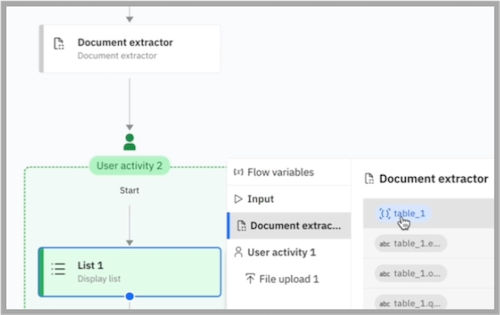
- To display row data from a table in a chat, you can iterate through the rows of an extracted table using a For each loop in the workflow. To do this, you can combine a For each loop with a user activity node and Message output. Then, to display each row, you can select the columns in the For each loop data mapping.
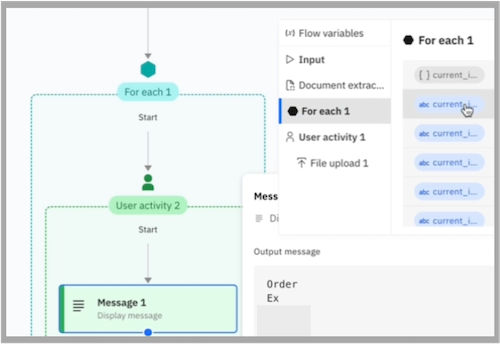
Also, to use any extracted table output in a downstream node in the workflow, you can use this same process of For each loop data mapping. This enables further processing such as applying conditional logic in a workflow.
Configuring a user review
You can configure the settings that trigger a user review.
If the system extraction confidence score is lesser than the set extraction confidence threshold (for unstructured option), or when the extraction returns empty values (for structured option), a user review task is created and assigned to the user.
To configure a user review:
- Select the document extractor in the agentic workflow.
- Set the User review switch to on.
- Do one of the following:
-
For unstructured option: Click the Edit icon
in the If the extraction confidence is below field. Set the extraction confidence threshold for all fields or specific fields that can trigger a user review. To select specific fields that trigger a user review, click the Edit icon , select the specific fields, and click Done. Extraction confidence score reflects how closely the extracted results match the expected values. -
For structured option: Click the Edit icon in the If the extraction returns any empty values field.
- In the Assign to list, select one of these options:
-
|
Option |
Description |
|---|---|
|
Flow initiator |
Only a user who starts the flow can review the document. |
|
Specified user |
Only a specified user can review the document. If no users are assigned, click Assign user to select a user. The selected user is displayed in the Assigned user field. To change the user, click the Edit icon |
|
User from a variable |
Only a user who is specified in a variable can review the document. |
The system notifies the user in the chat that a review is required depending on the extraction confidence score or empty values.
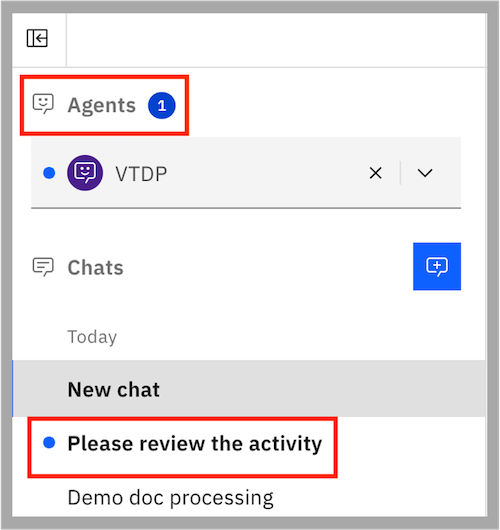
The user can click the chat notification to view the review activity.
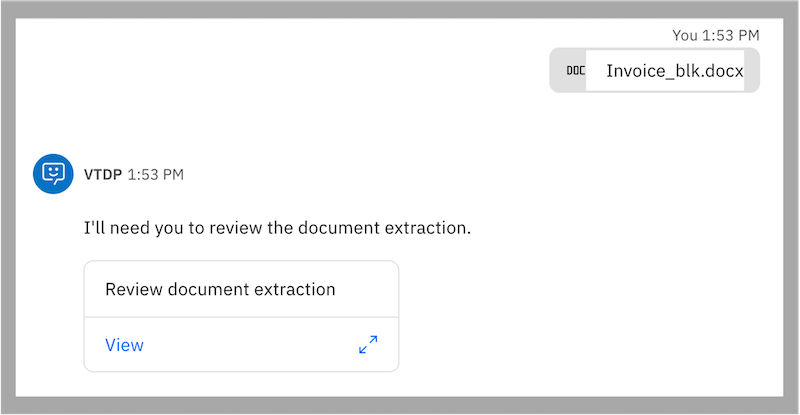
The user can then examine the extracted values, make any necessary changes, and submit the review. After submission, the workflow continues with the updated values.
Evaluating and improving document extraction
You can measure, analyze, and improve the accuracy of document extraction. The evaluation process compares the extracted values against expected values (ground truth values), and calculates metrics that help to refine and improve the extractor.
The evaluation user interface contains these primary areas:
- Document manager – Displays the list of documents and their verification status.
- Field editor – Displays the extracted values, and allows you to review and correct expected values.
- Document viewer – Displays the source document for reference during review.
Understanding ground truth values
To evaluate extraction accuracy, the system requires a trusted set of expected values for each field in a document. These expected values are known as the ground truth.
Ground truth represents the correct value for every field that the extractor is expected to identify. Evaluation metrics such as Accuracy, Precision, Recall, and F1 Score are calculated by comparing extracted values against this verified ground truth.
The system automatically copies extracted values into the Correct Value column as candidate ground truth values. You must review and validate these ground truth values.
The verification step is important because it ensures that:
- All extracted values have been reviewed.
- Ground truth data is accurate and trustworthy.
- Evaluation metrics are based on validated information rather than assumptions.
Evaluation workflow
Step 1: Upload test documents
Step 2: Define extraction fields
Step 3: Review and verify the ground truth
For each document:
- Select the document from the document manager.
- Review the extracted values displayed in the field editor.
- Compare each extracted value with the source document displayed in the document viewer.
- Correct any inaccurate values in the Correct Value column. Leave the field blank if the correct value should be empty or not available in the document.
- Click Verify document after you have reviewed all fields.
After verification:
- The document receives a Verified status.
- An accuracy percentage appears next to the document name.
- The document is included in evaluation metrics.
- The Metrics Summary is automatically updated.

A verified document indicates that you have reviewed and confirmed all the ground truth values.
Characteristics include:
- An accuracy percentage is displayed beside the document name.
- A Verified badge is displayed.
- The Verify document button is disabled.
- The document contributes to the metrics.
The percentage displayed beside a verified document is a performance measurement indicating how accurately the model extracted values from that document.
Analyzing evaluation results
After one or more documents are verified, the system computes metrics at three levels:
- Document-level
Measures extraction accuracy for individual documents. These values help identify documents that might contain edge cases or extraction challenges.
- Field-level
Measures performance for individual fields across all verified documents. These metrics help identify fields that need better extraction or examples.
- Overall-level
The Metrics Summary displays a consolidated view of extractor performance across all verified documents.
Understanding metrics
The Metrics Summary provides these standard evaluation metrics: Accuracy, Precision, Recall, and F1 Score. However, all metrics currently use exact matching when comparing extracted values with ground truth values. This behavior applies to all metrics and should be taken into account when interpreting results. Currently, fuzzy matching is not available in the Metrics Summary.
The Metrics Summary helps you identify and troubleshoot extraction issues.
The dashboard provides:
- Overall metrics.
- Detailed field-level metrics.
- A count of documents that contain issues for specific fields.
- Direct links to documents with field mismatches.
Selecting a document count in the Documents with warning column automatically filters the document manager to show only documents affected by that field, making it easier to investigate and resolve extraction issues.
Updating the model and re-running evaluation
Document extraction evaluation is typically an iterative process.
After reviewing metrics, you can choose to:
- Add new extraction fields
- Update field descriptions
- Add examples
- Modify field data types
- Adjust extraction parameters
When you make these changes, previously generated predictions become stale. A warning is displayed to indicate that the metrics must be updated.
To update the metrics:
- Click the Rerun extraction icon.
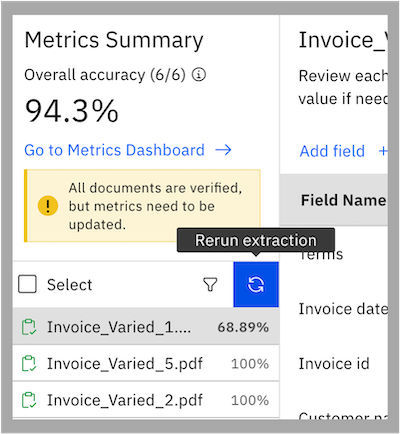
The system reprocesses the verified documents. New predictions are generated and metrics are recalculated automatically.
- Review the updated metrics to determine whether the changes improved performance.
For effective evaluation:
- Use a diverse and representative document set
- Verify all ground truth values before interpreting metrics
- Investigate documents with low accuracy scores
- Focus on fields with low Precision, Recall, or F1 Score.
- Use filters to quickly locate any problematic documents
- Continuously refine field definitions, examples, and descriptions based on evaluation
By providing verified ground truth data, evaluating model predictions against that data, analyzing metrics, and iteratively refining the extractor, you can systematically improve the extraction accuracy over time.
Document extractor limits and restrictions
Document extractors have the following limits and restrictions.
|
Area |
Description |
|---|---|
|
Maximum file size |
10 MB |
|
Maximum number of uploaded files |
100 files |
|
Accepted file types |
.doc, .docx, .jpeg, .jpg, .pdf, .png, .ppt, .pptx, and .tiff |
|
Maximum number of pages |
600 pages |
|
Maximum number of fields |
100 fields |
The following limitations also apply to the document extractor:
- Confidence values for extracted fields
The structured document extractor does not provide confidence scores for extracted field values, unlike the unstructured document extractor. Therefore, confidence-based user review rules cannot be configured.
- Single-mention extraction
The document extractor captures only one instance of a field value in a document, usually the first occurrence. For example, if an invoice number appears multiple times, only one instance is extracted. To capture multiple values, define fields with distinct semantic labels, such as home phone number and mobile phone number.
An agentic workflow defines a set of linked activities and controls that are designed to achieve a specific business purpose or goal. Learn more about agentic workflows.