Troubleshooting
Problem
This document provides information on how to configure an ODBC connection between Microsoft Access 2010 running on Windows 2008 R2 and a Spectrum Protect server running on a separate machine.
Resolving The Problem
In this case, the Windows operating system is 64-bit and Microsoft Access is also 64-bit. Complete the steps that follow to establish an ODBC connection between Microsoft Access and a Spectrum Protect server V6 or V7 running on any supported platform.
1. Download the ODBC driver
Download the DB2 ODBC driver from the Fix Central site. From the Fix Central site, make the following selections :
From "Product Group", select "Information Management"
From "Information Management", select "IBM Data Server Client Packages"
From "Installed Version", select "9.7.*"
From "Platform", select "Windows 64-bit, x86"
Click Continue.
From the list of files to download, select the "IBM Data Server Driver for ODBC and CLI (Windows/x86-64 64 bit)" package. For example :

In this example, the following file is downloaded :
v9.7fp9_ntx64_odbc_cli.zip
2. Install the ODBC driver
Extract the zip file content to a folder of your choice. For example :
c:\db2driver
Change to the clidriver\bin directory in the extracted folder. For example :
c:\db2driver\clidriver\bin
From the clidriver\bin directory, run the following command to install the ODBC driver :
db2cli install -setup
To uninstall the ODBC driver, use the following command :
db2cli install -cleanup
3. Configure the ODBC Data Source
From Windows Administrative Tools, select "Data Sources (ODBC)".
Select the "User DSN" tab and click Add.
Select the "IBM DB2 ODBC driver" from the list of drivers and click Finish.
Type a Data source name of your choice and click Add. For example :

In the CLI/ODBC Settings window, enter a description of your choice.
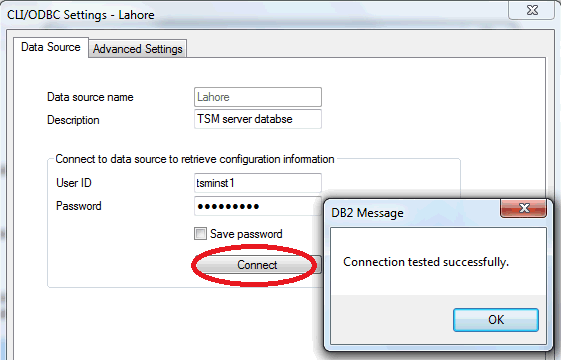
In the User ID and Password boxes, enter a user ID and password that has authority to access the Spectrum Protect server database. For example :

Note that the Spectrum Protect serfer instance userid and password may be used but it is preferable to use a separate userid which has authority to run select commands only (read only) to the database. Refer to the "Spectrum Protect DB2 ODBC user ID configuration" document for more information on creating a separate userid for ODBC access.
Select the "Advanced Settings" tab. Click Add to add each of the following CLI parameters :
- Database
Enter the value, TSMDB1. - Hostname
Enter the host name of the machine that runs the Spectrum Protect server. - Protocol
Enter the value, TCPIP. - Port
Enter the TCP/IP port that is configured for Spectrum Protect server. This port is specified by the DBMTCPPORT server option, which defaults to 51500.

Click OK to save the changes.
From the "User DSN" list, select the newly created Data Source, which in this example is TSMDB. Click Configure. For example :

From the CLI/ODBC Settings window, enter the Spectrum Protect server password and click Connect to confirm that an ODBC connection can be established with the Spectrum Protect server. For example :
4. Configure ODBC with Microsoft Access
Start Microsoft Access
Select "Blank Database"
Select the "External Data" tab
Select "ODBC Database"
Select "Import the source data into a new table in the current database" or "Link to the data source by creating a linked table"
Select the "Machine Data Source" tab
Select the Spectrum Protect ODBC Data Source Name that was created in step 3 (TSMDB in this example) and click OK.
Enter the Spectrum Protect server instance password if prompted.
Was this topic helpful?
Document Information
Modified date:
17 June 2018
UID
swg21673978