Troubleshooting
Problem
When attempting to create a new import specification in i2 Analyst's Notebook Premium with Opal Connector installed, I could previously specify the design of my import in the "select design" tab, but now it is missing.
Where can I find the "select design" tab?
Symptom
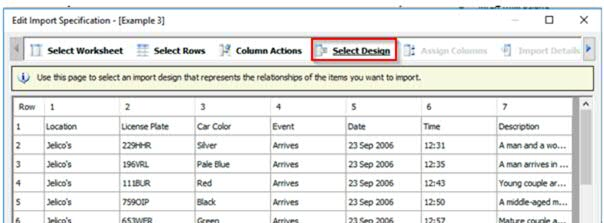
Usually you see the "select design" tab in the classic import of i2 Analyst's Notebook Premium. Like this:
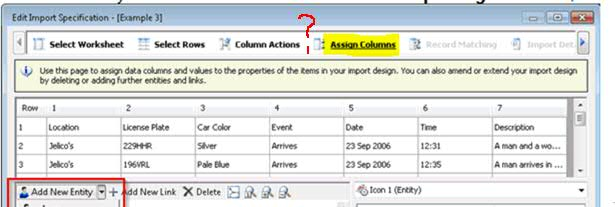
But the "select design" tab is missing after you enabled the Opal connector in i2 Analyst's Notebook Premium. Like this:
Cause
This is the expected software behavior from version 9.1.1 onwards of Analyst's Notebook Premium.
After the Opal connector is installed the importer in i2 Analyst's Notebook Premium will default to creating an Information Store import specification. This allows you to import data from various sources into your Information Store, matching its design, hence removing the ability to modify the imports design. This import specification is then saved as an .oimp file.
Instead, if you still wish to bring in data to the chart surface that is not for upload to the information store, you instead must select to create a classic import. These import files can then be created to your own design in the design tab as before, and are then saved as an .ximp file.
In other words, plain i2 Analyst's Notebook, or i2 Analyst's Notebook Premium without opal connector, will have the "select design" tab/step in the import specification. However, i2 Analyst's Notebook Premium with Opal Connector installed will not have the "select design" tab/step in the import specification, but classic import specifications can still be created.
Resolving The Problem
If you have i2 Analyst's Notebook Premium with Opal Connector installed and you wish to use the "select design" features in the import specification, then you can choose to create a "classic import" specification. However, keep in mind, a classic import won't have opal aligned import and chart data and therefore cannot be uploaded to the Information Store.
Here is how to create a classic import in i2 Analyst's Notebook Premium with Opal connector installed:
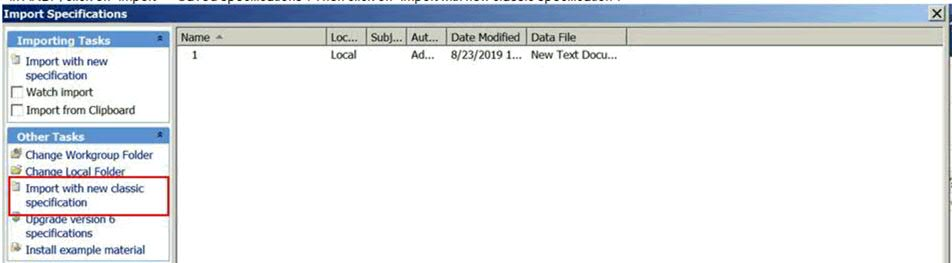
In i2 Analyst's Notebook Premium, click on "Import" -> "Saved specifications". Then click on "import with new classic specification".
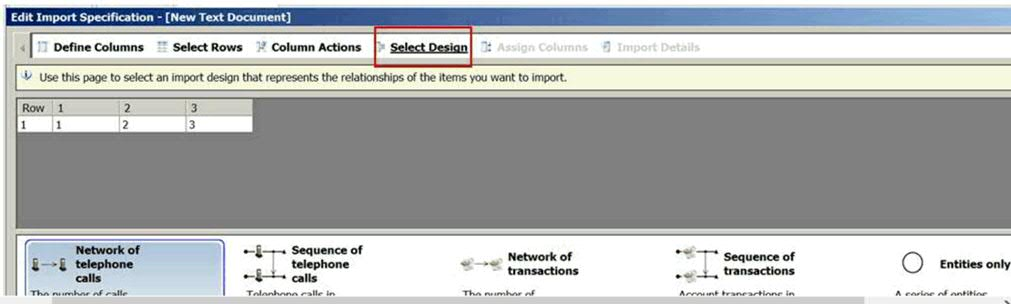
Next, select the file you wish to import, and in the import specification you should see the "select design" tab.
Related Information
Document Location
Worldwide
[{"Business Unit":{"code":"BU059","label":"IBM Software w\/o TPS"},"Product":{"code":"SSXVMQ","label":"i2 Analyst's Notebook Premium"},"Component":"","Platform":[{"code":"PF033","label":"Windows"}],"Version":"9.1.1;9.2.0","Edition":"","Line of Business":{"code":"LOB24","label":"Security Software"}}]
Was this topic helpful?
Document Information
Modified date:
28 August 2019
UID
ibm11071932