How To
Summary
This document provides the steps to collect Cloud Extender logs.
Steps
- Cloud Extender Diagnostic Logs
- Email Notifications Debug Logs
- Mobile Enterprise Gateway Debug Logs
- MaaS360 VPN Debug Logs
Cloud Extender Diagnostic Logs
- Log in to the Cloud Extender Server and Launch the Cloud Extender Configuration Tool
- Within the Application Menu Bar, select Help > Collect Logs
Optional: You receive a prompt and can enter a Password to encrypt the Log File. - A Zipped File of the logs show on the Desktop once complete.

- Alternatively, you can also gather logs manually by going to C:\Program Files(x86)\MaaS360\Cloud Extender and run DiagnosticCmd.exe
Email Notifications Debug Logs

Mobile Enterprise Gateway Debug Logs


MaaS360 VPN Debug Logs
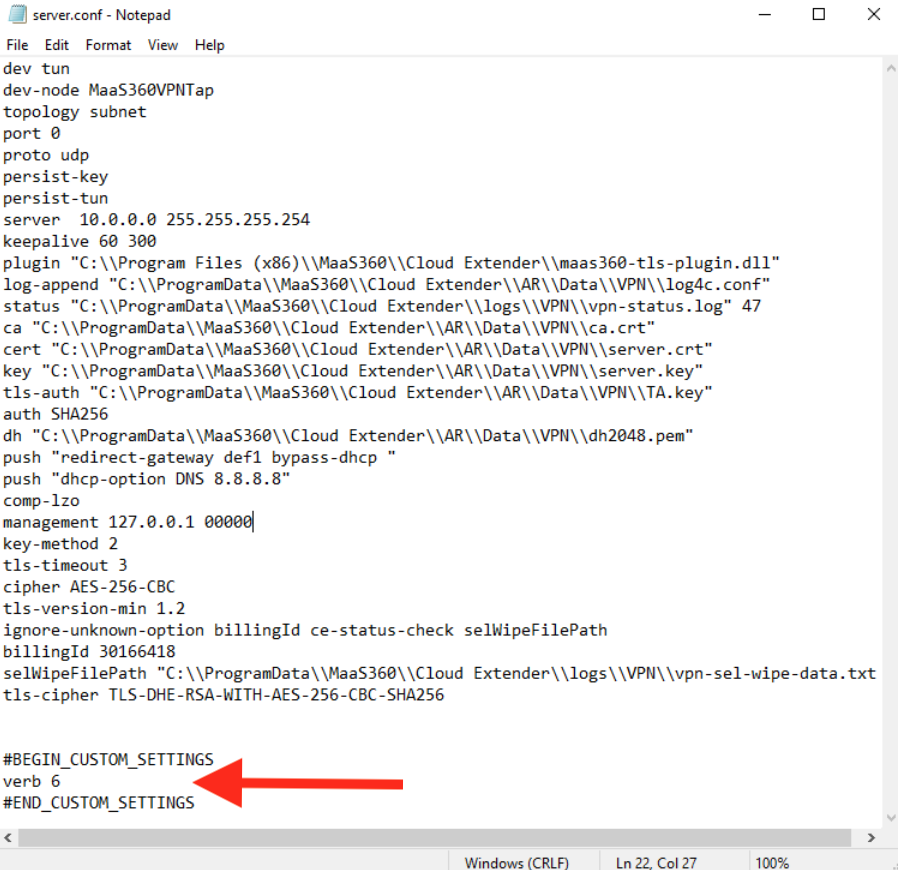
- Open the server.conf file located in C:\ProgramData\MaaS360\Cloud Extender\AR\DATA\VPN
- Add the following line as shown in the example below, case sensitive: verb 6
- Save the File
- Restart the 'maas360vpn.exe' process within Task Manager. The 'maas360vpn.exe' process is expected to restart automatically after a short wait, ~30 seconds.
Document Location
Worldwide
[{"Business Unit":{"code":"BU059","label":"IBM Software w\/o TPS"},"Product":{"code":"SSYSXX","label":"IBM MaaS360"},"Component":"Cloud Extender","Platform":[{"code":"PF032","label":"VM"},{"code":"PF033","label":"Windows"}],"Version":"All Versions","Edition":"","Line of Business":{"code":"LOB24","label":"Security Software"}}]
Was this topic helpful?
Document Information
Modified date:
20 June 2023
UID
ibm10869646