Mapping Assist overview
Mapping assist uses a pre-trained artificial intelligence (AI) algorithm and community mappings to suggest mappings for the fields in the nodes that you add when building a flow.
You can generate mapping suggestions after you add an action to a flow. These suggestions identify output from previous nodes in the flow that might be suitable as input values for the fields in the current node.
 to map an individual field.
 that indicates the confidence percentage of the mapping. Hover the mouse over the
icon to view the percentage.
that indicates the confidence percentage of the mapping. Hover the mouse over the
icon to view the percentage. that indicates the confidence percentage of the mapping. A mapping that is used
fewer than 10 times by the community has a confidence level of 85%. A mapping that is used 10 times
or more, has a confidence level of 90%, which increases to 95% for a mapping that's used 25 times,
and to 100% when it's used 50 times. In the following example, when you hover over the community
icon, you see that the mapping has a rating of 85%, which is based on the same source-to-target
mappings in the App Connect user community.
that indicates the confidence percentage of the mapping. A mapping that is used
fewer than 10 times by the community has a confidence level of 85%. A mapping that is used 10 times
or more, has a confidence level of 90%, which increases to 95% for a mapping that's used 25 times,
and to 100% when it's used 50 times. In the following example, when you hover over the community
icon, you see that the mapping has a rating of 85%, which is based on the same source-to-target
mappings in the App Connect user community.
 and turn off social
learning.
and turn off social
learning. - Mapping assist algorithm techniques for estimating matches
-
The mapping assist algorithm currently provides mapping suggestions for simple (not nested) fields, and navigates parent hierarchy structures to suggest the best possible matches for nested fields.
 For nested array fields, mapping assist returns suggestions as follows.
- Mapping suggestions are generated for exact schema matches, where the source array and
destination array (schema structure and field names) are identical. For example, this behavior
applies if you want to transfer data across two separate instances of an application for which you
set up separate App Connect accounts.

- Mapping suggestions are also generated for an array of complex fields by using artificial
intelligence (AI) modeling to identify the best possible matches that can be inserted automatically
as the best suggestions, or inserted manually at field level.
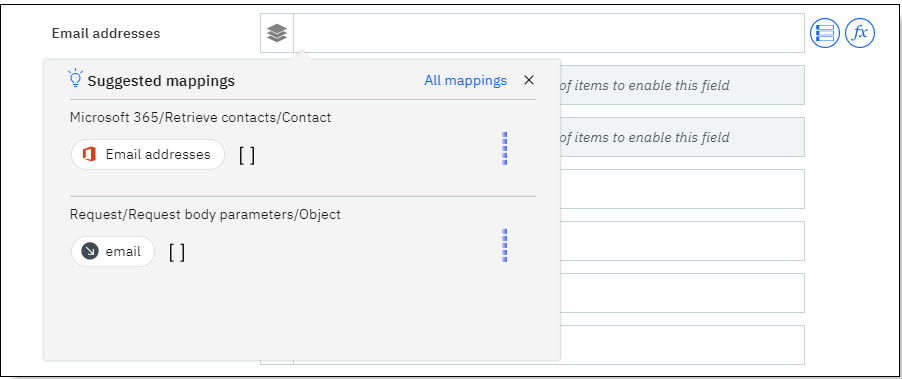
If an action has multiple fields with the same or a similar name, a mapping that is identified as a best suggestion is inserted automatically only into the field that is deemed to be the closest match. For example, if there are two fields called Email and Email adress, an
Emailmapping suggestion will have a higher level of accuracy associated with the Email field, and is inserted automatically into that field only. To populate any of the other fields with the same mapping suggestion, you must insert that mapping into the field manually.The data types of the fields are also considered when suggesting matches; for example, source and destination fields with identical names, but different data types, are not considered a match. In the following example where JSON schema has been generated in the CSV parser, no mapping will be suggested for the Catalog ID integer field (
123) because the sourceCatalog IDfield in the generated schema is set to astringdata type. If changed tointeger, a suggested mapping with a 100% rating is expected between these two fields.
- Mapping suggestions are generated for exact schema matches, where the source array and
destination array (schema structure and field names) are identical. For example, this behavior
applies if you want to transfer data across two separate instances of an application for which you
set up separate App Connect accounts.
- Community mapping history used for estimating matches
- If social learning is enabled, App Connect Designer collects and stores the anonymized mapping data of community users, excluding any personal information. The sole purpose of this data collection is to preserve mapping selections between source and target nodes so that they can be learned and presented as future mapping suggestions to App Connect users.
Disclaimer: You are responsible for any example data (including any personal information) used for, and any decision to proceed with, any automated flows which are suggested for your convenience when IBM® App Connect is used. IBM has no responsibility for any such automated flows and IBM warranties and support will not apply to them; they are used at your risk. IBM might periodically modify the underlying learning models in App Connect through updates, fixes, or patches in order to improve App Connect performance.