POWER7 information

Removing a PCI adapter from the 8202-E4B, 8202-E4C, 8202-E4D, 8205-E6B, 8205-E6C, or 8205-E6D with the power off

Remove a PCI adapter with the system power off.

Attention: If you are removing a PCI adapter in order to install a new or upgraded PCI adapter, see Installing a PCI adapter in the 8202-E4B, 8202-E4C, 8202-E4D, 8205-E6B, 8205-E6C, or 8205-E6D with the power off to obtain slot locations and prerequisites. If you are removing a PCI adapter as part of a service procedure, continue to use the following procedure.

If your system is managed by a HMC, use the HMC to complete the steps for removing a part from the system. For instructions, see Removing a part by using the HMC.

Note: Check the display on your control panel to see if your system is managed by the HMC. If you do not see HMC displayed, your system has never been connected to the HMC. A display of HMC=0 indicates that your system does not currently have the HMC. If the HMC display equals a number greater than 0, your system has the HMC.

If you do not have an HMC, complete the following steps to remove a PCI adapter with the system power off:

  1. Complete the prerequisite tasks that are described in Before you begin.
  2. Take appropriate precautions for avoiding electric shock and handling static-sensitive devices. For information, see Avoiding electric shock and Handling static-sensitive devices.
  3. Stop the system or logical partition. For instructions, see Stopping a system or logical partition.
  4. If your system is a rack-mounted system, place the system into the service position. For instructions, see Placing a rack-mounted model into the service position.
  5. Remove the service access cover.
  6. If you are removing a failing PCI adapter, use the service label on the service access cover to match the failing part with its location code. For instructions, see 8202-E4B, 8202-E4C, 8202-E4D, 8205-E6B, 8205-E6C, or 8205-E6D locations. If you are removing the PCI adapter for other reasons, continue to the next step.
  7. Reach behind the system and disconnect all power cords from the unit you are servicing.
    Figure 1. Disconnecting the power cordsDisconnecting the power cords
    Note: An optional power supply is available in the 8202-E4B, 8202-E4C, or 8202-E4D system. The 8205-E6B, 8205-E6C, or 8205-E6D system is equipped with a mandatory second power supply. Before continuing with this procedure, ensure that the power source to the system has been disconnected.

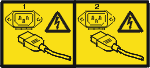
    (L003)

    Hazardous voltage or energy levels are present inside any component that has this label attached. Do not open any cover or barrier that contains this label.
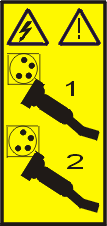
    or
    Hazardous voltage or energy levels are present inside any component that has this label attached. Do not open any cover or barrier that contains this label.

  8. Attach the wrist strap.
    Attention:
    • Attach a wrist strap to an unpainted metal surface of your hardware to prevent electrostatic discharge (ESD) from damaging your hardware.
    • When using a wrist strap, follow all electrical safety procedures. A wrist strap is for static control. It does not increase or decrease your risk of receiving electric shock when using or working on electrical equipment.
    • If you do not have a wrist strap, just before removing the product from ESD packaging and installing or replacing hardware, touch an unpainted metal surface of the system for a minimum of 5 seconds.
  9. Determine which adapter you plan to remove, and then label and disconnect all cables that are attached to that adapter.
  10. Record the slot number and location of each adapter being removed.
    Note: Adapter slots are numbered on the rear of the system.
  11. If the adapter latch (B) is not already in the open position, pull the latch into the open position by pressing down on it from its clip on the back of the system, as shown in Figure 2 and Figure 3.
    Figure 2. Removing a PCI adapter from a rack-mounted system unit
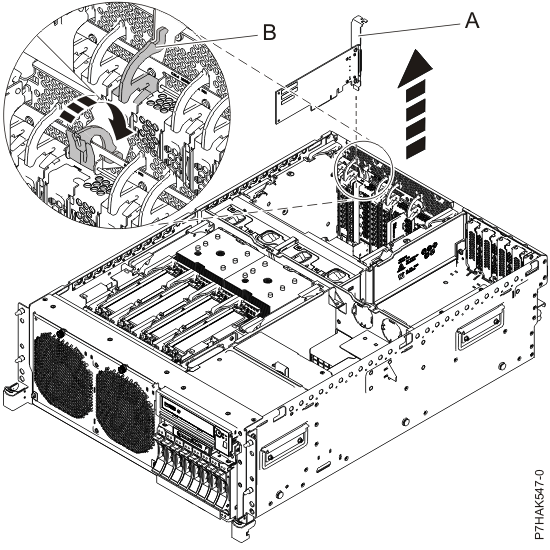
    Removing a PCI adapter from a rack-mounted system unit.
    Figure 3. Removing a PCI adapter from a stand-alone system unit
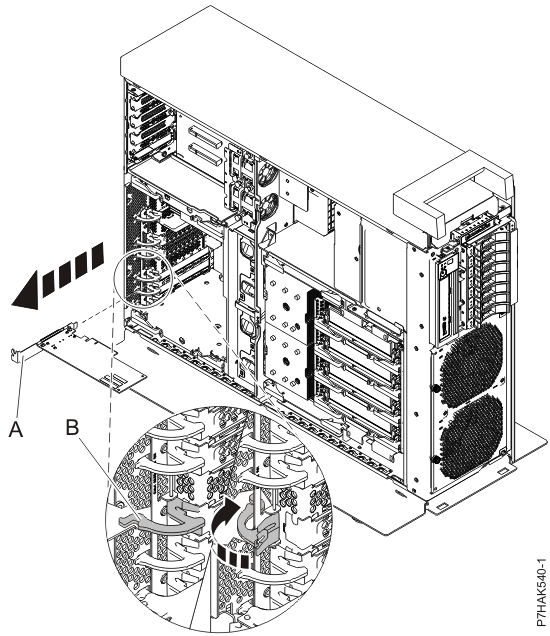
    Removing a PCI adapter from a stand-alone system unit.
  12. Carefully grasp the PCI adapter by its top edge or tailstock (A), and remove it from the system. Store the adapter in a safe place.
    Attention: A pin on the tailstock of the adapter resembles a removable screw. Do not remove this pin. It is required for correct alignment and seating.
  13. If your system has an expansion riser, you can pull the low profile PCI adapter from its slot by its tailstock (A), as shown in Figure 4 and Figure 5.
    Figure 4. Removing a PCI adapter from an expansion riser in a rack-mounted system
    Removing a PCI adapter from an expansion riser in a rack-mounted system.
    Figure 5. Removing a PCI adapter from an expansion riser in a stand-alone system
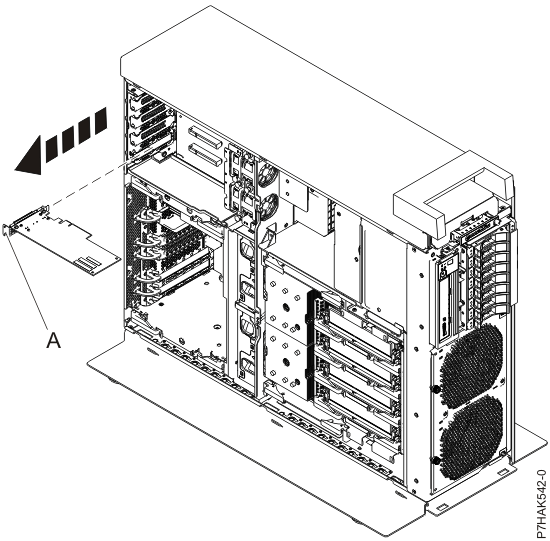
    Removing a PCI adapter from an expansion riser in a stand-alone system.
  14. If you are removing a PCI adapter as part of another procedure, return to that procedure. If not, continue to the next step.
  15. If you plan to install another adapter into the vacated slot, go to Replacing a PCI adapter in the 8202-E4B, 8202-E4C, 8202-E4D, 8205-E6B, 8205-E6C, or 8205-E6D with the power off; otherwise, continue with the next step.
  16. Install a tailstock filler in the newly vacated slot.
  17. Replace or close the service access cover.
  18. For a rack-mounted system, place the system into the operating position. For instructions, see Placing a rack-mounted model into the operating position.
  19. Reconnect the power source to the system.
  20. Start the system or logical partition. For instructions, see Starting a system or logical partition.
  21. To replace the PCI adapter, see Replacing a PCI adapter in the 8202-E4B, 8202-E4C, 8202-E4D, 8205-E6B, 8205-E6C, or 8205-E6D with the power off.


Send feedback Rate this page

Last updated: Thu, January 10, 2019