Subscribe to this information
POWER7 information
Removing a PCI adapter in the 8233-E8B system, with the power on in the IBM i environment
You can remove a PCI adapter with the system power on in the IBM® i environment.
If your system is managed by a HMC, use the HMC to complete the steps for removing a part from the system. For instructions, see Removing a part by using the HMC.
Important:
- If the adapter is the load source I/O adapter (IOA) or the load source I/O processor (IOP), or any other storage IOA or IOP with critical disk storage attached for the system or partition, follow the on-screen instructions when you use HSM to power down the IOP or IOA. Instructions to use functions 68 and 69 on the control panel will be included.
- If the adapter is the console IOA or the console IOP for the system or partition, you must perform the maintenance from an IBM i operating system session connected through a different IOA or IOP, or you must power down the partition to perform maintenance.
- If you are removing, installing or
replacing a PCI-X double-wide, quad-channel Ultra320 SCSI RAID controller,
note the following concurrent maintenance information before proceeding
with the instructions provided here. Concurrent maintenance of this
double-wide adapter is not supported through the HMC. Concurrent maintenance
must be done from within the partition operating system. In IBM i,
the Hardware Service Manager (HSM) of the system or owning partition
will automatically power off or on both PCI slots when either slot
is selected. In AIX® or Linux, you must manually
power off and on each slot separately.Note:
- Both PCI slots must be powered off when installing or removing this adapter with the system power on.
- If this adapter is the load source IOA, or any other storage IOA with critical storage devices attached to the system, this concurrent maintenance procedure should be performed by a qualified service provider.
- If you are removing, installing
or replacing a PCI-X DDR 1.5 GB cache SAS RAID Adapter, note the following
concurrent maintenance information before proceeding with the instructions
provided here. Concurrent maintenance of this adapter is not supported
through the HMC.
Concurrent maintenance must be done from within the partition operating
system. In IBM i, the Hardware
Service Manager (HSM) of the system or owning partition will automatically
power off or on both PCI slots when either slot is selected. In AIX or Linux, you must manually
power off and on each slot separately.Note:
- Both PCI slots must be powered off when installing or removing this adapter with the system power on.
- If this adapter is the load source IOA, or any other storage IOA with critical storage devices attached to the system, this concurrent maintenance procedure should be performed by a qualified service provider.
- Fibre Channel Adapters (5735 or 5774) installed in IBM i OS logical partitions will post errors at initial program load (IPL) if there is no device or wrap plug attached to each of the adapter's ports. Make sure that every Fibre Channel Adapter (5735 or 5774) that is installed in IBM i OS logical partition has either a wrap plug or a device attached to each of the adapter's ports. If you are exchanging a 5735 or 5774 Fibre Channel IOA, the external storage subsystem must be updated to use the worldwide port name of the new 5735 or 5774 IOA. For instructions, see Updating the worldwide port name for a new 5735 or 5774 IOA.
- If you are replacing a 2748, 2757, 2763, 2767, 2778, 2780, 2782, 5702, 5709, or 570B storage IOA, take note of the following: Depending on the configuration of the system, the storage IOA cache might have been disabled to allow the attachment of OEM storage that emulates a load source drive. If you are replacing a storage IOA that has its cache disabled, configure the replacement IOA the same way as the IOA that you removed. If you remove hardware from the replacement IOA, return that hardware with the failed IOA.
If you do not have an HMC, complete the following steps to remove a PCI adapter with the system power on in the IBM i environment:
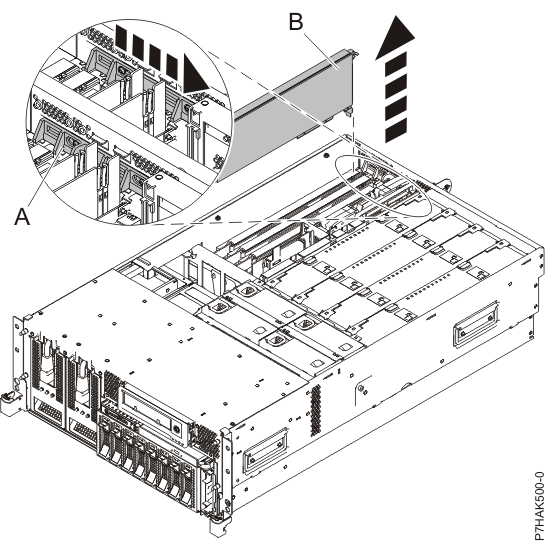
- Slide the adapter latch (A) into
the open position, as shown in the following figure. Figure 1. PCI adapter or filler plate removed from the rack-mounted system unit