Using the Open dialog
When you select Open from the File menu in the main window or an editor, the Open dialog is displayed, listing object definitions to select and open.
Open from the main window
In the main window, select Open from the File menu to list all objects in the Optim Directory. You can open as many editors as you require and can have several instances of the same editor open at one time.
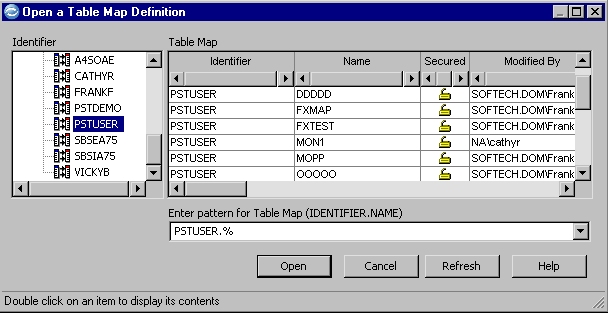
The Open dialog is divided into two areas. A list includes the identifiers and object types (icons) and another list displays the associated objects. Objects are listed according to the appropriate naming convention. For more information about Naming conventions, see Use a pattern.
Secured objects
If Optim Security is initialized for the Directory, the Secured column is displayed and includes the following icons:

- The object has an Access Control List.

- The object does not have an Access Control List.
For more information, see Object Security.
Open from an editor or dialog
When you select Open from a File menu on an editor or dialog, the appropriate list of objects is displayed. In all other ways, the appearance and functions of the Open dialog are the same as when the dialog is opened from the main window.
Object tree
The object tree lists object types and identifiers. Objects that are associated with a selected identifier are listed on the right. The object list varies to match the identifier you select. When you select an identifier, the Pattern value changes to the identifier name followed by this symbol: %.
To list identifiers for an object type:
- Double-click the object type.
- Click the plus sign to the left of the object type.
- Highlight the object type, and then press plus sign (on the numeric keypad) or right arrow.
To display the object list that is associated with an identifier:
- Double-click the identifier.
- Highlight the identifier, and then click Open or press Enter.
- Select the identifier and click Refresh or press Alt+R.
To close a list of identifiers for an object type:
- Double-click the object type.
- Click the minus sign to the left of the object type.
- Highlight the object type, and then press minus sign (on the numeric keypad) or Alt+Enter.