Experience Analytics integration setup
Use Experience Analytics to capture the behaviors of customers who abandoned their carts so that information can be published through Exchange and used by Campaign.
- Step 1: Capturing the behavioral
data.Capturing the behavioral data involves:
- Setting identifiers (email, log in ID, phone) for capture from the sessions where the customer abandoned their carts.
- Setting the behaviors (the actions related to cart abandonment) for capture by creating and configuring events.
- Step 2: Connecting Experience Analytics to Campaign
using Exchange
Creating publisher and subscriber endpoints in Exchange through which behavioral event data flows.
. - Step 3: Configuring access to Exchange
.
Enabling and configuring the Exchange integration settings in the Experience Analytics product.
Step 1: Capturing behavioral data
You need to capture the behaviors of your customer to know that they abandoned a cart and why. The behaviors tell you what happened during the user's session that might have caused them to abandon, if there was an obvious cause. These behaviors are important to understanding your customer.
- Identity
Who is the customer? Do they have a name and an email?
- Action
What did the customer do?
- Details
How many items were in their cart? What were the items that were in their cart? What was the total dollar value of their cart?

In Experience Analytics, identifiers can be captured with session attributes and the actions can be captured with events. You can create other analytics assets such as events, hit attributes, and session attributes to populate the actions/events with details such as data values.
Setting identifiers for capture with Experience Analytics
Experience Analytics works on a "session level". So, to capture information that identifies the customer, we create session attributes.
- Phone
- Login
- Device ID

When you're creating a new session attribute, make sure
that your UBX identifier is set to Email.

Click +Add event and select the event that populates this Session Attribute.

We have already created a hit attribute to capture the email when the customer log's in to the website. You take that information and you create an Event. The information from that Event populates this Session Attribute.
Add another session attribute to include the phone, login, and device ID.
Setting behaviors for capture with Experience Analytics
Experience Analytics can capture attributes about behaviors throughout a session of a known user.
- Session
- Business conversion
- User struggle
- Video
- Search
- Product
Within a category, you have a lot of behaviors that you can configure within an event.

For our scenario, we are creating events in the Business conversion category.
- Adds an item to his / her Cart
- Removes an item from his / her Cart
- Abandons his or her cart.
To do this, we create an event for each of these actions.
- Click Event Manager.
- In the Event Manager, click and fill out the form.
- In the UBX event section, specify category and event that you want to
track.
For example, Category =
Business Conversionand Event =Add item to Cart.The Business Conversion category includes the following events.- Select an event from the list:
- Add item to cart
- Remove item from cart
- Cart abandonment
- Cart purchase
The add item to cart and remove item from cart events can have the following attributes. Asterisked (*) attributes are required:- Category*
- Product Id*
- Product Name*
- Product Description
- Product URL
- Image URL
- Color
- Size
- Quantity*
- Currency*
- Base Price*
The cart purchase and cart abandonment events can have the following attributes. Asterisked (*) attributes are required:- Cart total*
- Currency*
- Abandonment reason
These event attributes are critical to the personalization for your customers. The more information your marketing team can get, the better!
Experience Analytics can capture attributes about behaviors throughout a session. Inside the event you can configure the behavior and then add attributes populated by other events or constants. The Category, Event, and Event attributes that you set in the UBX event section, correspond to the publishing taxonomy in Acoustic Exchange. To understand which attributes are in each behavior see our Dynamic Event Library by going to: https://ubx-01.ibmmarketingcloud.com/#/taxonomy.
- Select an event from the list:

Step 2: Connect Experience Analytics to Campaign using Exchange
Exchange is an open exchange of pre-defined behaviors, endpoints, and audiences to help you share data, personas, integrations, and segments openly, without the heavy lift from IT.
Working on a publish and subscribe model, Exchange is your connection from point A to point B to get data flowing easily and freely -- making information available with the click of a button! Data flows from one product to another in just minutes.
First, you'll need to make sure that you have both the Campaign and Experience Analytics endpoints. The process for registering both endpoints is the same.
- Click Register new endpoint

- Find the endpoint you want to register and select it:
- IBM Engage for Acoustic Campaign
- IBM Tealeaf CX on Cloud for Acoustic Experience Analytics
- Enter the required information for each endpoint (* indicates required fields)For Acoustic Experience Analytics
- Deployment*
- Tealeaf org key*
- Endpoint alias
- Endpoint description
 For Acoustic Campaign
- Deployment*
- Campaign org key*
- Endpoint alias
- Endpoint description
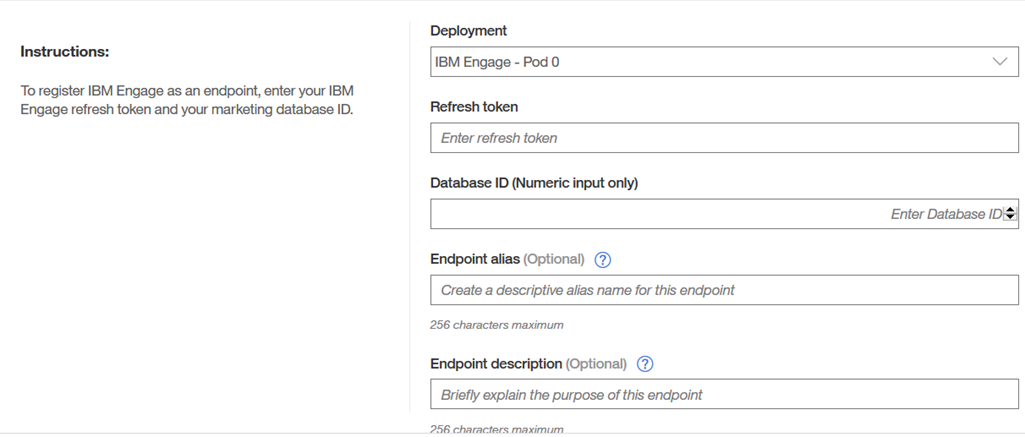
- Click Register to register the endpoints.
- Select the Events tab.
- Click Subscribe to events.
- Select your Publisher as IBM Tealeaf CX on Cloud (for Experience Analytics).
- Select your events:
- Add item to cart
- Remove item from cart
- Cart abandonment
- Cart purchase
- Select your destination as IBM Engage (for Acoustic Campaign).
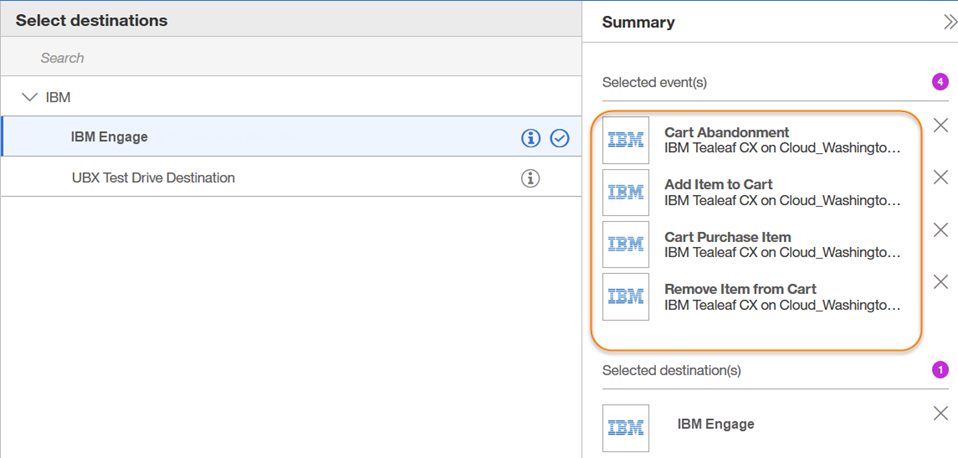
- Click Subscribe.
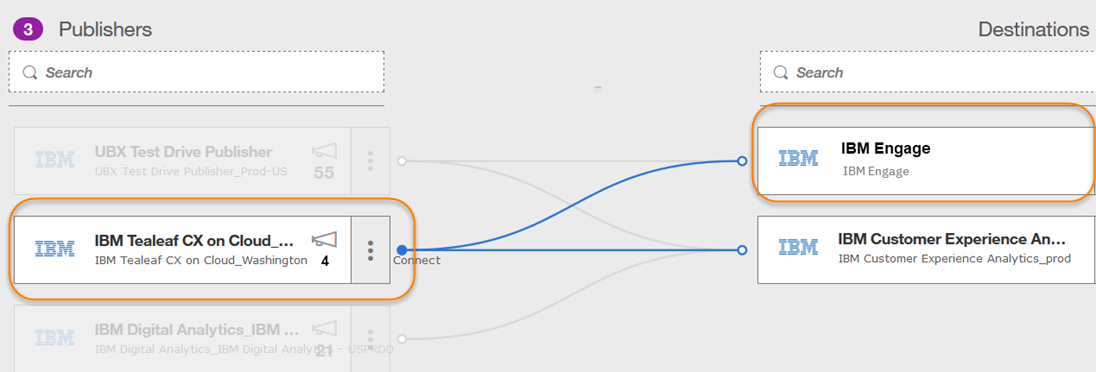
Step 3: Configure access to Exchange
Access to Exchange is not enabled when Experience Analytics is provisioned. By default, access to Exchange is disabled.
As the OrgAdmi, you can configure Experience Analytics to access to Exchange.
- From the home page, click your user name and select Admin .
- Click Settings to display the Company Settings page.
- Click Edit at the bottom of the page, scroll to the Integration setting section and find the UBX integration parameters.
- Set the UBX syndication toggle to
ON.When enabled, the UBX settings "tell" Experience Analytics what security token (auth key) to use to send Event data to UBX and to what Data Center (UBX Endpoint URL) .
- Enter the UBX auth key.
- Enter the UBX Endpoint URL.
The UBX Endpoint URL maps to the data center geography. If you don't specify a URL, it uses the global setting for its endpoint URL.
When a user creates an endpoint in Exchange, it generates an auth key, which is the key that the OrgAdmin adds to the Company Settings.
- Click Save.
- Captured the behavior (identifiers, actions, details) by creating and configuring events for Exchange to publish data to Campaign.
- Connected Experience Analytics and Campaign in Exchange.
- Enabled and configured Experience Analytics to access exchange
As a subscriber to Experience Analytics, Campaign can access the event data and use it in personalized campaigns around Cart Abandonment.