Retyping values in a message
To reduce the likelihood of typographical errors and as an additional authorization step, some fields require that their values be re-entered manually. This operation is called retyping. The user who most recently modified or authorized a message is not allowed to retype fields.
Which fields require retyping depends on the message type of the message. A message in a retype queue might not contain any fields that require retyping. For such a message, you can click Accept without entering any data.
To retype values for a message:
- Select the message from the message list. The formatted
view is displayed, and only the fields for which values are to be
retyped are enabled, as shown in Figure 1. The unformatted
view is not available; this prevents the user from seeing the data
that is to be retyped.
Figure 1. Retyping a message 1 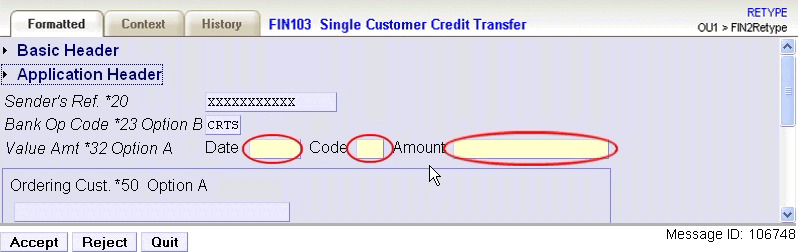
- Enter the required data and click Accept. If the
retyped data is correct, the message is accepted for further processing.
Figure 2. Successful retyping 
If the retyped data is incorrect, an error information is displayed containing the information, which field was incorrect. You can try the operation three times. The message is rejected if this limit is reached.
Clicking Reject causes the message to be routed according to the routing definitions. The sample routing definitions pass the message to an edit queue. Clicking Quit closes the view without saving any changes. The action Reject can also be selected from the pop-up menu in the message list, because it does not require that values be retyped.