Display Options
The Table Editor provides several ways to manipulate the display. You can perform functions on all tables, individual tables, or specific rows.
An edit window has two format options,
columnar and side label. You can switch between the two formats by
clicking the  or
or  button on the edit window toolbar.
The default format is columnar. Most of the examples throughout this
sectionl are shown in columnar format.
button on the edit window toolbar.
The default format is columnar. Most of the examples throughout this
sectionl are shown in columnar format.
Columns
When a table is displayed in columnar format, the Join Arrow grid column and the Status grid column are to the left of the table columns.
In the following example, the edit window shows several rows of data in columnar format.
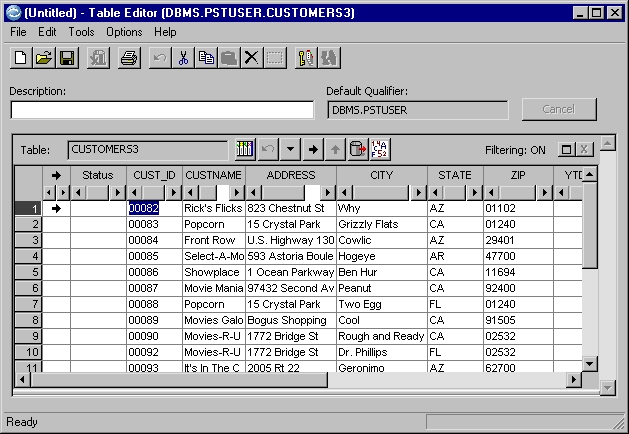
In columnar format, the column headings display across the top of the edit window and the data displays in columns beneath the headings. Note that the headings for primary key column(s) display in bold type.
Side Label
In side label format, the column headings are displayed down the left side of the edit window and the data is displayed to the right of the headings.
Use the navigation buttons on the edit window toolbar to scroll the display. This format focuses on a single row and can display more columns for the row than the columnar format. Side label format is useful to edit data in very wide columns.
In the following example, the edit window shows data in side label format.

When a table is displayed in side label format, the relative position of a row in the fetch set and the status of the row is noted in the status bar at the bottom of the edit window.