File Attachments tab
Use the File Attachments tab to extract files that are referenced within or associated with a row of extracted data and include it in an Archive or Extract File. You can attach multiple files to each row in a table.
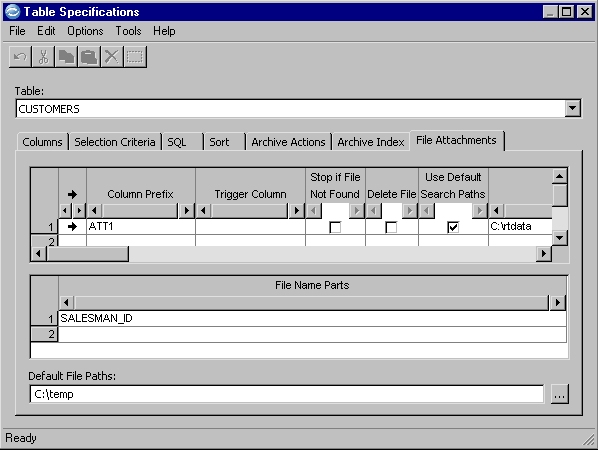
The extracted
file is attached
to an extracted database row by three pseudocolumns
within the Archive or Extract File. The pseudocolumns are:
- prefix_FILE_NAME (a VARCHAR2 pseudocolumn that includes the file name from File Name Parts and the file search path that is indicated in the File Attachment List).
- prefix_BLOB (a BLOB pseudocolumn that includes the file data)
- prefix_ATTRIB (a BLOB pseudocolumn that includes file attribute information)
File Attachment List
Use the File Attachment List to provide details for
each attached file. Each row in the list represents a file that is
attached to the extracted data. The  column indicates the selected
row.
column indicates the selected
row.
- Column Prefix
- The prefix that is used to name the pseudocolumns in the Archive or Extract File. Each prefix must be unique to the table.
- Trigger Column
- The name of a column that controls processing of the file attachment. Click the grid cell to obtain a list of eligible columns in the table. (Only a CHAR, VARCHAR, NCHAR, and NVARCHAR can serve as a trigger column.) Leave blank to indicate that no trigger applies. Optional.
- Stop if File Not Found
- Processing if a file is not found. Select the check box to stop processing or clear to continue.
- Delete File
- Deletion of attached file during Delete Processing. Select the check box to delete the file after the associated row is successfully deleted or clear to continue.
- Use Default Search Paths
- Select the check box to search the default paths for the attachment or clear to search the file Search paths. If selected, you must enter one or more paths in Default File Paths; if cleared, you must enter one or more paths in File Search Paths.
- File Search Paths
- One or more paths to search for the file, separated by a semicolon. Paths are searched in the order listed. After the file is found, any remaining paths are not searched. Use the browse button to select paths.
File Name Parts
The file name for the attachment that is selected in the File Attachment List. The name is generated by concatenating values from listed columns with any literals you enter.
You must enter each literal or column name in order on a separate row. Enclose literals in quotation marks and select column names from a drop-down list of CHAR, VARCHAR, NCHAR, and NVARCHAR columns in the table.
The name resulting from concatenating
the values and literals is combined with the search paths to locate
the appropriate file. For example, if you provide the column name USERID and
the literal .txt
as file name parts, Optim™ searches for and attaches
the first file that is named 123.txt that is
located in a designated search path when processing a database row
with the value 123
in the USERID column.
Default file paths
One or more paths, which are separated by a semicolon. These paths are the default search paths for any attachments to any table referenced in the Access Definition. They are searched if Use Default Search Paths is selected in the File Attachment List for any file. Paths are searched in the order listed. After the file is found, any remaining paths are not searched. Use the browse button to select paths.
Shortcut menu commands
Use the following commands from the File Attachments List and the File Name Parts list.
- Remove
- Remove the selected row.
- Remove All
- Remove all rows from the list.
File Attachment Specifications Identified
A File Attachment icon  in the Table Specifications
column on the Access Definition Editor table
list indicates that File Attachment specifications are defined for
the table.
in the Table Specifications
column on the Access Definition Editor table
list indicates that File Attachment specifications are defined for
the table.