Specify Column Values in a Relationship
The Relationship Editor lists the pairs of corresponding parent table and child table entries that make up the relationship.
Define or edit relationships by:
- Adding or replacing column names by selecting names from a list.
- Editing column entries. You can specify explicit column names (up to 75 characters) or a constant, a literal, a function, or expression.
Restrictions
Although the rules for creating Optim™ relationships are more flexible than those for creating database-defined relationships, there are some restrictions:
- You must reference at least one column for each table in the relationship.
- You can reference a maximum of 64 columns for any table in the relationship.
- You cannot match a literal or constant to a literal or constant.
- You cannot use a Large Object (LOB) or SQL variant column.
- The total length of all values specified in either the Parent Table or the Child Table cannot exceed 3584 bytes.
- You cannot create a Relationship using an SQL Variant column.
In a Relationship definition for a multi-byte or Unicode database:
- You cannot use the Substring Function.
- You cannot concatenate character data (CHAR or NCHAR) with binary (RAW).
- If Oracle character semantics are used for any CHAR column, all CHAR columns in the relationship must have character semantics or an NCHAR data type.
EXAMPLES:
| Parent | Supported/Not Supported | Child | Description |
|---|---|---|---|
| CHAR |  |
CHAR | Supported, semantics must match |
| NCHAR |  |
NCHAR | Supported, semantics irrelevant. |
| CHAR |  |
NCHAR | Not Supported |
| CHAR |  |
VARCHAR | Supported, semantics must match. |
| NCHAR |  |
NVARCHAR | Supported, semantics irrelevant. |
| CHAR||NCHAR |  |
NCHAR||CHAR | Supported, if character semantics; not supported if byte semantics. |
| CHAR||NCHAR |  |
NCHAR||NCHAR | Supported, if character semantics; not supported if byte semantics. |
Violating these restrictions causes an error. For further details about column compatibility, see Compatibility Rules for Relationships.
Select Column Names from a List
Select Parent Columns or Child Columns from the Tools menu to add or replace column names. You can switch between the Parent Table Columns dialog and Child Table Columns dialog by selecting the appropriate command from the Tools menu in the Relationship Editor.
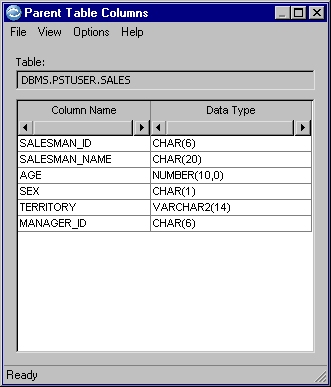
Table
Fully qualified name of the parent table from which you can select names of columns to include in the relationship.
Column Name
To select from the list of columns, drag column names from the dialog to the appropriate grid cell in the Relationship Editor. The inserted column name replaces any value in the current grid cell. The data types of the paired columns in the editor are evaluated and the Status is automatically updated.
Change the column display by selecting View menu commands in the Parent Table Columns dialog:
- To view a list of all columns in the table, select All.
- To view all unused columns, select Unused. If the table contains many columns, it may be helpful to display only unused columns.
Data Type
Data type for each column in the parent table.
Edit Parent and Child Columns
You can specify or modify a column name by typing over the name or using shortcut menu commands to Insert, Remove, or Remove All column names.
In addition, you can specify expressions, including substrings, concatenations, constants and literals for either the parent or child table column in a relationship. This flexibility is one of the most powerful features of Optim relationships. You can use any of the following values:
- Column Name
- An explicit column name in the parent or child table. (Column names are case-insensitive.)
- NULL
- NULL.
- Numeric Constant
- A numeric constant. The value must conform to the data type, precision and scale defined for the column.
- Boolean Constant
- A Boolean constant as TRUE or FALSE.
- String Literal
- A string literal for a non-arithmetic value:
- You can specify a string literal when the corresponding column contains character data.
- You must enclose a string literal in single quotes.
You can define a string literal containing any characters, for example: 'CA' or '90210'.
- Hexadecimal Literal
- A hexadecimal literal: X‘1234567890ABCDEF'
or 0X12 34567890ABCDEF - Substring
- A Substring Function to use a portion of a source column value.
- Concatenated Expression
- A Concatenated Character or Binary expression to obtain a derived value.
Substring Function
Use the Substring Function to select part of a column value for a relationship. The Substring Function returns a substring of the contents of the named column. The Substring Function format is:
SUBSTR(columnname, start, [length])
- columnname
- Name of a character or binary column.
- start
- The position of the first character in the string.
- length
- The number of characters to use.
- If the locale uses a comma as the decimal separator, you must leave a space after each comma that separates numeric parameters (for example, after the comma between start and length.
- start and length are integers greater than or equal to 1.
- start plus length cannot exceed the total data length plus 1.
- column-name and start value are required. If you specify only one integer, it is used as the start value. The substring begins at start and includes the remainder of the column value.
Example
If the PHONE_NUMBER column is defined as CHAR(10), you can use the Substring Function to map the area code. To obtain a substring of the first three positions of the phone number (area code) for the destination column, specify:
SUBSTR(PHONE_NUMBER, 1, 3)
Concatenated Expressions
Concatenation allows you to combine column values or combine a column value with another value, using a concatenation operator (CONCAT, ||, or +). A concatenated expression can include character or binary values, but not both:
- Character Values
- Concatenated character values can be character columns, string literals, or substrings of character columns.
- Binary Values
- Concatenated character values can be binary columns, hexadecimal literals, or substrings of binary columns.
Example 1
You can define relationships using different data structures. For example, the data in two or more columns in one table may correspond to data in a single column in another table. You can define this type of relationship using concatenation or the Substring Function.
Assume that an address in the CUSTOMERS table is in two columns, ADDRESS1 and ADDRESS2, and in one column, ADDRESS, in the SHIP_TO table. You can define a relationship between the two tables by concatenating the columns in the CUSTOMERS table:
| CUSTOMERS Table | SHIP_TO Table |
|---|---|
| ADDRESS1 || ADDRESS2 | ADDRESS |
| ADDRESS1 CONCAT ADDRESS2 | ADDRESS |
| ADDRESS1 + ADDRESS2 | ADDRESS |
Example 2
You can define the same relationship as in the prior example, using substrings:
| CUSTOMERS Table | SHIP_TO Table |
|---|---|
| ADDRESS1 | SUBSTR(ADDRESS,1,25) |
| ADDRESS2 | SUBSTR(ADDRESS,26,25) |
To compare the results of using a concatenation operator or the Substring Function, examine the generated SQL in each case.
SQL for a relationship using the concatenation operator:
SELECT * FROM TABLE2
 WHERE TABLE2.ADDRESS = 'composite value from both parent columns'
SQL for the relationship defined using the Substring Function:
SELECT * FROM TABLE2
 WHERE SUBSTR(TABLE2.ADDRESS, 1,25)='value from parent ADDRESS1
column'
 AND   SUBSTR(TABLE2.ADDRESS,26,25)='value from parent ADDRESS2
column'
Complex SQL is generated in the substring example; the DBMS must scan all rows in the table to achieve the desired result and may not use an index, even if one exists. In general, concatenation provides better performance.
Data-Driven Relationships
A data-driven relationship exists when a row in the parent table is related to rows in one of several child tables on the basis of the value in a particular column. You can define a data-driven relationship using:
- String literals or hexadecimal literals
- Numeric Constants and Boolean Constants
- NULL
For example, consider a pair of sample tables used to determine employee insurance rates for males and females. The EMPLOYEE table stores the identification, age, and gender details for each employee:
| EMPLOYEE_ID | AGE | GENDER |
|---|---|---|
| 058-44-2244 | 38 | F |
| 106-46-0620 | 40 | M |
| 248-91-2890 | 27 | M |
The FEMALE_RATES table contains insurance rates for women based on age; the MALE_RATES table contains insurance rates for men based on age:
- FEMALE_RATES
-
AGE RATE 38 .25 39 .33 40 .43 - MALE_RATES
-
AGE RATE 38 .31 39 .38 40 .47
Two relationships are needed, one for rows in the EMPLOYEE table that contain data about female employees, and one for rows in the EMPLOYEE table that contain data about male employees.
Rows in the EMPLOYEE table are related to the FEMALE_RATES table when the value in the GENDER column matches the string literal 'F'. The AGE column in the EMPLOYEE table corresponds to the AGE column in the FEMALE_RATES table.
| EMPLOYEE | FEMALE_RATES |
|---|---|
| GENDER | 'F' |
| AGE | AGE |
In the second relationship, rows in the EMPLOYEE table are related to the MALE_RATES table. This relationship is identical to the first, except that the value in the GENDER column matches the string literal 'M'.
| EMPLOYEE | MALE_RATES |
|---|---|
| GENDER | 'M' |
| AGE | AGE |
For any row in the EMPLOYEE table, only one of the relationships can be satisfied because the column EMPLOYEE.GENDER must be 'M' or 'F'. After the appropriate relationship is selected, the related rows are identified by comparing values in the AGE columns.