Adding tools
Tools can be added to an agentic workflow to enable agents to interact with external systems, run operations, or automate steps within the flow.
To add tools to the agentic workflow:
-
Choose one of these options:
-
Click add workflow items
 icon. Select the Tools tab.
 -
Click the connector line between the start and end nodes, and select Call a tool.
-
-
Select a tool from your local instance.
Adding tools that use member credentials to agentic workflows
You can add tools to agentic workflows that use member credentials for their connections. For more information about member credentials, see Member credentials.
If member credentials are not available at run time, the system prompts you to enter the credentials in the chat. If a tool uses multiple connections that require credentials, the system prompts you for each set of credentials as needed at run time.
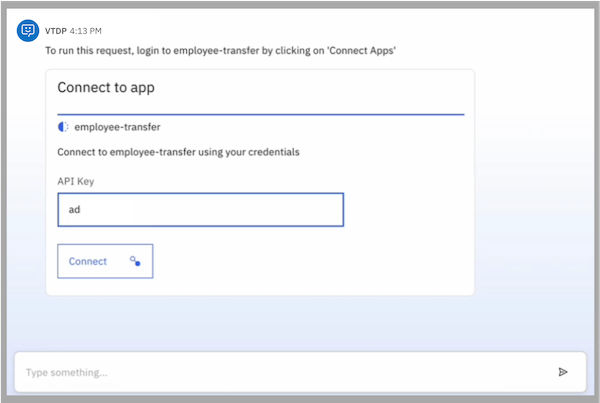
After a connection is successfully established with member credentials, the system saves the credentials on the Manage > Connections > Credentials tab. You are not prompted for the credentials again after the connection succeeds. However, tools that use time-based authorization for connections might prompt you to reenter the credentials in the chat after a specified time interval.
Manage error handling
Error handling manages tool failures within a workflow. When a tool fails, you can configure the workflow to automatically retry the operation. If the retry attempts fail, the workflow then displays a custom error message to the user or continues along an alternative failure path based on your configuration. This capability helps manage errors in workflows and improves overall workflow reliability.
You can download an example agentic workflow that is related to the error handling from https://github.com/IBM/ibm-watsonx-orchestrate-adk/tree/main/examples/flow_builder/Random_Failure. For more information, see Example agentic workflows.
Configuring error handling for a tool
To configure error handling for a tool:
-
Select the tool in the workflow builder.
-
Click
 next to Error handling.
 -
In Error handling, set the Retry on error switch to on.
-
Configure the Retry on error settings:
-
Maximum number of retries: Specify the number of retry attempts (between 1 and 5).
-
Wait time between retries (ms): Specify the delay between retry attempts in milliseconds (between 1000 and 60000). The default value is 1000 ms.
-
-
In the On error section, select how the workflow responds when the tool fails.
-
Fail and send error message: The workflow stops at the failed tool and displays an error message. In the Error message field, enter a custom message to display when the tool fails. This option is the default behavior.
-
Create failure branch: The workflow continues along a separate failure path when the tool fails. A Failure branch appears from the failed node in the workflow builder, with an option to add the next activity for the failure path.
-
Retry indicators appear on the tool in the workflow builder.
After error handling is configured, switching from Create failure branch to Fail and send error message displays a confirmation dialog. Confirming the change removes the existing failure branch connector from the workflow.
Tools with error handling configured display a summary in the tool properties that shows the retry settings and error handling method.
Supported error codes for retry
The following error codes are supported for automatic retry:
-
408 Request Timeout: The client took too long to send the request. A retry can succeed.
-
409 Conflict: Indicates a version conflict. Retry after the conflict is resolved.
-
425 Too Early: The request was sent too soon. Retry later.
-
429 Too Many Requests: Indicates throttling. Retry after the delay specified in the Retry After header.
-
500 Internal Server Error: Indicates a server error that can be temporary.
-
502 Bad Gateway: Indicates a temporary proxy or server issue. A retry can succeed.
-
503 Service Unavailable: Indicates that the server is temporarily unavailable or undergoing maintenance.
-
504 Gateway Timeout: Indicates that the upstream server did not respond in time. A retry can succeed.