Removing and replacing 7014-T00 or 7014-T42 trim panels
Racks that are installed with multiple processor drawer systems can use front trim panels instead of doors. For racks that use trim panels, a reduced-interference panel type must be installed when certain expansion unit models are present. Remove the existing trim panels from the rack and replace them with the reduced-interference panel type.
Removing the 7014-T00 or 7014-T42 trim panels
For racks that use trim panels instead of doors, a reduced-interference panel type must be installed when certain expansion unit models are present.
To remove the existing rack trim panels, complete the following steps:
- Place both hands on the center of the right side trim panel.
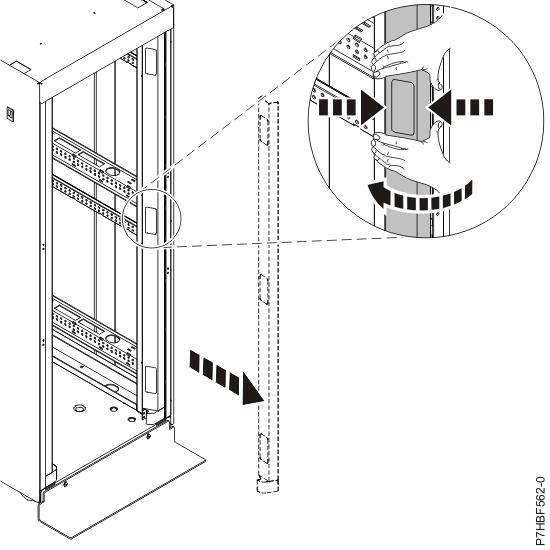 Figure 1. Removing the rack trim panel
Replacing the 7014-T00 or 7014-T42 trim panels
For racks that use trim panels instead of doors, a reduced-interference panel type must be installed when certain expansion unit models are present.
To install the trim panels, complete the following steps:
- Align the bottom plate (A) of the
right side trim panel to the bottom of the rack.
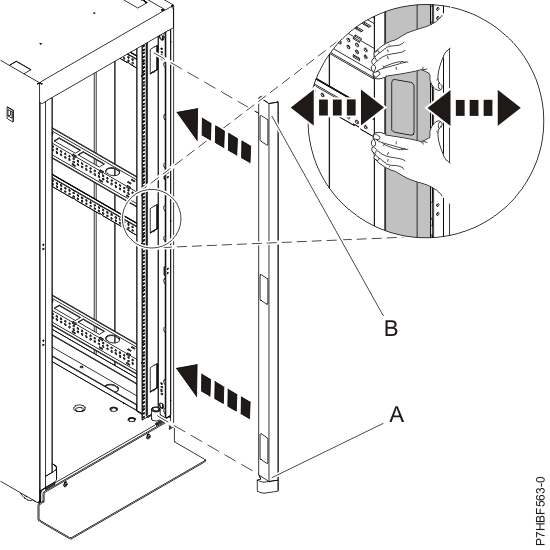 Figure 2. Installing the rack trim panel
